The essentials
your Mac is missing.

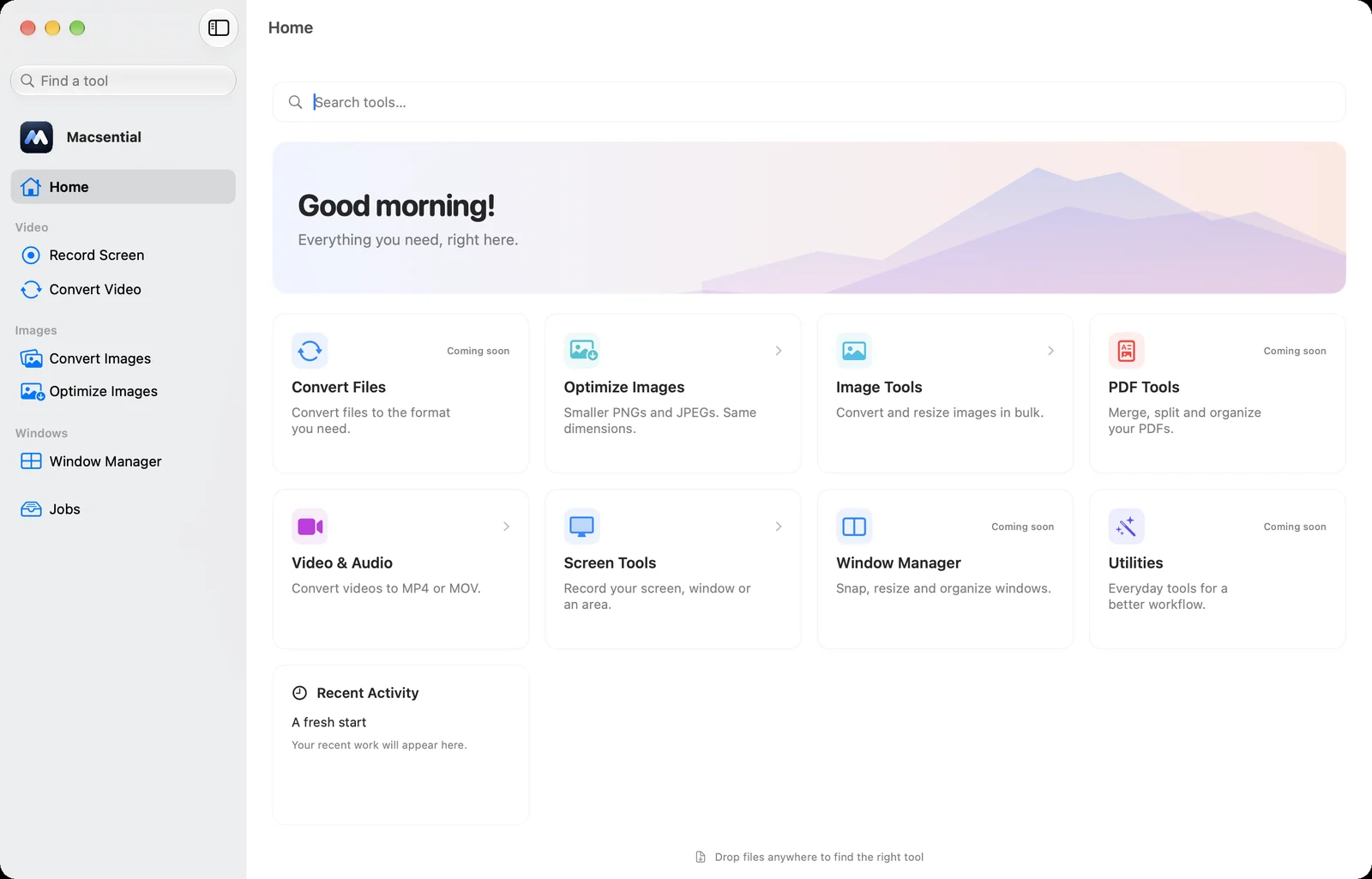
Convert, compress, capture and organize. File, image, PDF, video, screen and window tools in one native app. Press ⌘K, type what you need, or just drop a file.

Native Swift app · Runs on-device · No account

Macsential Home: tool search, a greeting, and cards for file, image, PDF, video, screen and window tools.
Tools

Everything you reach for,
in one app.

Find a tool from the search box or the menu bar, or drop a file anywhere and Macsential shows the tools that can open it.

  • Convert Files Soon
    Change formats by drag and drop
  • Batch Rename Soon
    Tokens, find and replace, preview
  • Zip & Unzip Soon
    Archive and extract safely
  • Convert Images
    PNG, JPEG, HEIC, TIFF, WebP
  • Resize Images
    By edge, percent or exact size
  • Optimize Images
    Smaller files, same pixels
  • Remove Metadata
    Strip camera and location
  • Merge PDFs Soon
    Many documents, one file
  • Split PDF Soon
    By ranges or every N pages
  • Organize Pages Soon
    Reorder, rotate, delete
  • Compress PDF Soon
    Lighter files to share
  • Convert Video
    MP4 or MOV, H.264 or HEVC
  • Compress Video Soon
    Hit a target file size
  • Extract Audio Soon
    Save the sound as M4A or WAV
  • Trim Video Soon
    Keep only the part you need
  • Screenshot Soon
    Display, window or region
  • Record Screen
    With camera, mic and Mac sound
  • Recording Editor
    Zoom, background, captions
  • Text from Image Soon
    Copy text from anything on screen
  • Window Manager
    Halves, quarters and thirds
  • Window Shortcuts
    Your own global key combos
  • Workflows Soon
    Chain tools into one step
  • Menu Bar Search
    Every tool and recent file
  • Recent Activity
    Find what you made earlier
Features

Small jobs, done properly.
Every one of them.

Not a pile of half-finished utilities. Every tool shares one calm native window, one way to pick files and one safe way to save them.

⌘ 1

Drop a file, get the format you need

Drag anything onto Macsential and it suggests the tools that can open it. Convert and resize images and video in batches today, with documents and archives next.

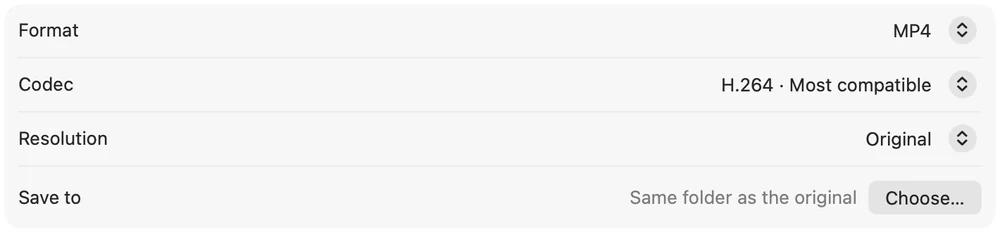
Convert Images settings: convert to JPEG, quality 85 percent, and a resize switch. Convert Video settings: MP4 format, H.264 codec, original resolution and the output folder.
⌘ 2 Coming soon

The PDF jobs you do every week

Merge, split, reorder and compress PDFs. Drag pages into order and see exactly what you will export.

  • Proposal.pdf12 pages
  • Pricing.pdf3 pages
  • Signed contract.pdf5 pages
  • Merge into one PDF
⌘ 3

A whole folder at once

Drop a folder to convert or optimize every image. If one fails, the rest still finish. Originals are never overwritten.

  • IMG_2041.HEIC
  • IMG_2042.HEIC
  • demo.mov
  • scan-03.tiff
⌘ 4

Screen recordings that look edited

Record a display, window or area with your camera, mic and Mac sound. Then add zooms, backgrounds, captions and speed changes in the editor, and export MP4, MOV or GIF. Nothing is baked in, so you can change it later.
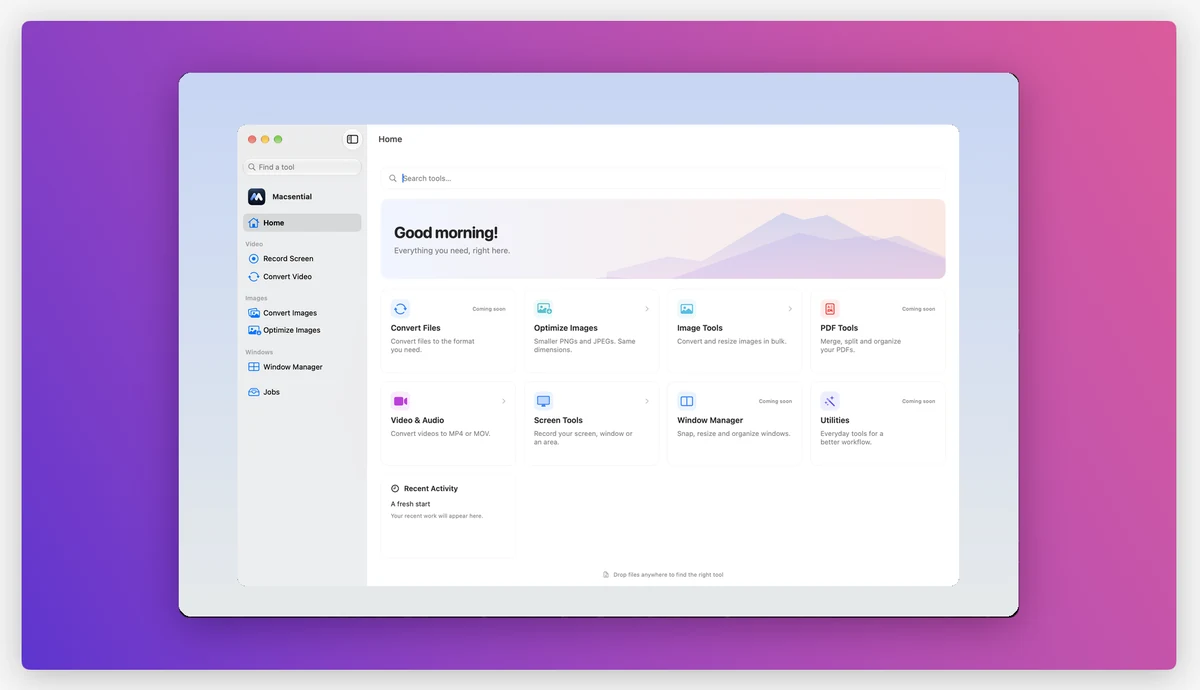
The recording editor preview: a recording placed on a purple gradient background with padding and rounded corners.
⌘ 5 Coming soon

Screenshots and text from anything

Capture a region, a window or a display with one shortcut, then copy the text out of it with on-device recognition.

640 × 180

Quarterly report

Revenue grew in every region this quarter.

“Quarterly report. Revenue grew in every…” Copied
⌘ 6

Snap windows from the keyboard

Halves, quarters, thirds and two-thirds for the front window, with shortcuts like ⌃⌥←. Change any of them.
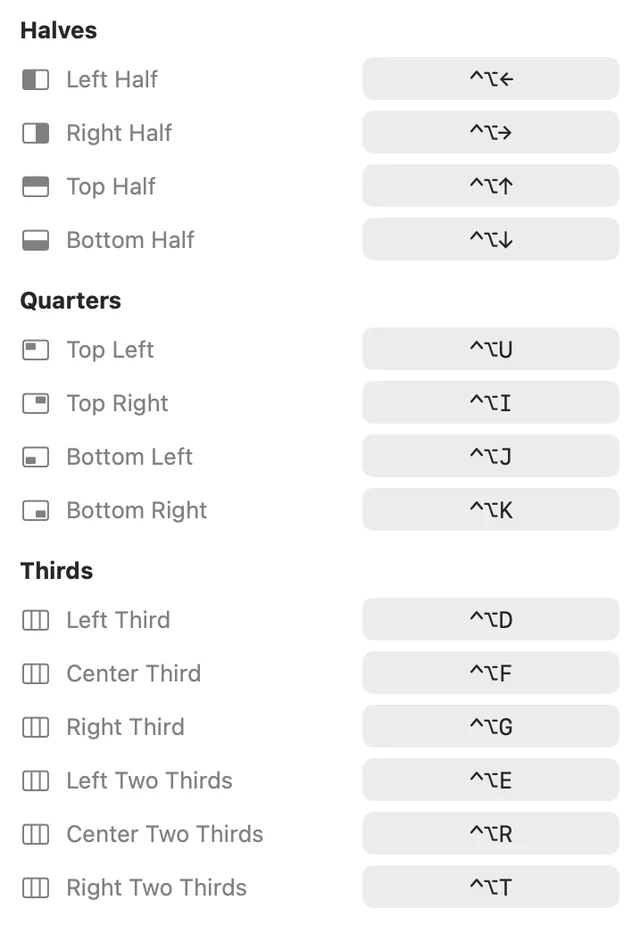
Window Manager shortcuts: Left Half, Right Half, Top Half, Bottom Half and the quarters, each with its key combination.
⌘ 7 Coming soon

Tools that work together

Chain tools into one step and run it from a single shortcut. Every tool hands its result to the next.

Screenshot Text from Image Copy
Record Trim Compress Show in Finder
FAQ

Questions,
answered.

What do I need to run Macsential?
A Mac with Apple Silicon running macOS 15 Sequoia or later.
Do my files get uploaded anywhere?
No. Every tool runs on your Mac, including text recognition and captions, which use Apple's on-device frameworks.
Will Macsential change my original files?
Never. Output always goes to a new file with a name that doesn't clash, and a cancelled job leaves no half-written file behind.
Do I need to install anything else?
No. Macsential is built on macOS's own image, PDF, video and capture frameworks, so there are no extra downloads or command-line tools.
Which permissions does it ask for?
Only what a tool needs, when you first use it: Screen Recording for screenshots and recordings, Microphone and Camera if you turn them on, and Accessibility for the Window Manager. Macsential opens the right System Settings pane for you.
Can I edit a screen recording after it is made?
Yes. Zoom, background, camera, speed, captions and audio are never baked in. Open the recording again at any time, change them and export again.

Stop hunting for apps.
Keep the essentials in one.

Macsential is in development. The first public release is coming soon.

Read the FAQ
Macsential app icon